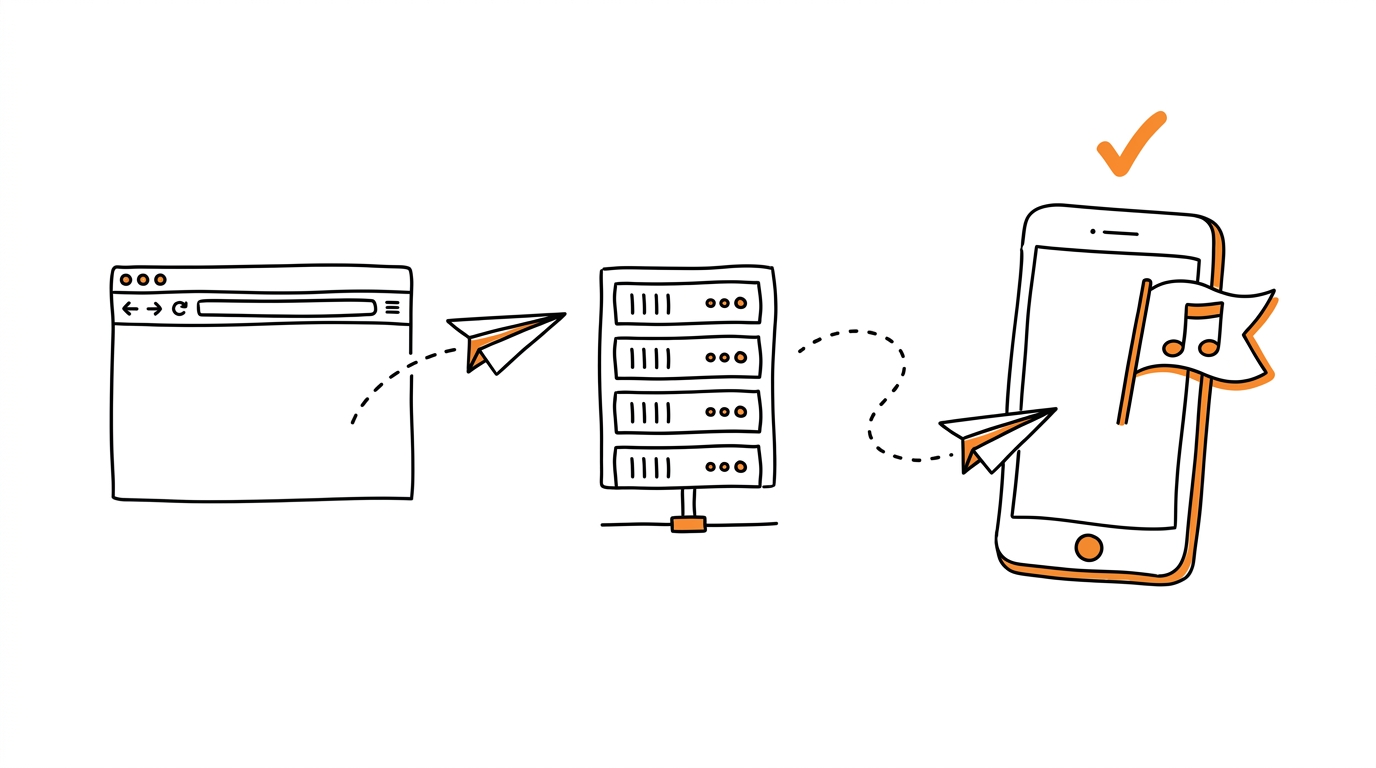
Browser pixels lose events to ad blockers and cookie restrictions. A TikTok Events API server-side GTM setup sends conversion data from your own tag container, restores those lost signals, and improves match quality. This guide walks through token generation, container setup, tag configuration, deduplication, and testing.
Why use TikTok Events API server-side GTM?
When a user converts on your site, the browser pixel fires a client-side request to TikTok. Ad blockers intercept that request. Safari ITP strips identifiers. The result: incomplete conversion data, lower match rates, and less accurate bidding.
A GTM server container receives the event on your own subdomain, enriches it with hashed customer data, and forwards it to the TikTok Events API endpoint. Because the request originates from a server, no browser extension can block it.
Teams that already run server-side tagging for Meta will find the architecture familiar. How Meta treats server-side events under AEM is covered in Facebook Aggregated Event Measurement.
Prerequisites
Before starting, confirm you have:
- A TikTok for Business account with at least one pixel created in Events Manager.
- A Google Tag Manager account with a server container deployed and receiving events from your web container.
- Admin permissions in both TikTok Events Manager and GTM.
- A custom subdomain (for example,
metrics.yourbrand.example) pointed at your server container.
If you have not yet deployed a server container, Google provides step-by-step instructions in their server-side tagging documentation.
Step 1: Generate an Events API access token
- Open TikTok Events Manager and select your pixel.
- Navigate to Settings and scroll to the Events API section.
- Click Generate access token.
- Copy the token immediately. TikTok displays it only once.
- Store the token in a secrets manager or GTM server-side variable. Never hard-code it in client-side code.
The token ties events to your pixel. If you rotate it, all server tags using the old token stop delivering until you update them.
Step 2: Configure the server container endpoint
In your GTM web container, set the server container URL in the Google tag configuration:
// gtag.js configuration
gtag('config', 'G-XXXXXXX', {
  transport_url: 'your-container.example',
  first_party_collection: true
});
Replace your-container.example with the subdomain you mapped to your server container. All supported tags in the web container now relay hits to that endpoint instead of calling third-party domains directly.
Step 3: Add a TikTok Events API tag to the server container
- In the GTM server container, go to Templates and search the gallery for "TikTok Events API" (published by Stape or AddingWell).
- Create a new tag using that template.
- Fill in the required fields:
| Field | Value |
|---|---|
| Pixel Code | Your TikTok Pixel ID from Events Manager |
| Access Token | The token generated in Step 1 |
| Event Name | A GTM variable that maps the incoming event name |
- Under User Data, map hashed identifiers:
{
  "user_data": {
    "em": "{{SHA256 Email}}",
    "ph": "{{SHA256 Phone}}",
    "external_id": "{{SHA256 UserID}}"
  }
}- Set the trigger to fire on the events you want forwarded (Purchase, AddToCart, CompleteRegistration, etc.).
The tag hashes identifiers with SHA-256 before sending. TikTok rejects unhashed email or phone values.
For teams that prefer a managed solution without manual tag wiring, MOST automates conversion routing across TikTok, Meta, and other platforms from a single dashboard.
Step 4: Enable event deduplication
Without deduplication, every conversion arrives twice: once from the browser pixel, once from the server tag. TikTok counts both, inflating your numbers.
The fix is a shared event_id. Generate a UUID at the moment of conversion and attach it to both the client pixel call and the server event:
// Client pixel (web container)
ttq.track('Purchase', {
  value: 49.99,
  currency: 'USD',
  event_id: '{{Event UUID}}'
});
ttq.track takes two arguments - the properties object carries event_id; the third-argument form is Meta's fbq signature and silently drops the ID on TikTok.
In the server tag, pass the same UUID through the event_id field. TikTok's deduplication logic matches on the combination of event_id and event_name within a 48-hour window.
For a deeper explanation of how deduplication interacts with attribution windows, see Event Deduplication.
Step 5: Verify with Events Manager test events
- In TikTok Events Manager, open Test Events.
- Enter your website URL and click Start testing.
- Trigger a test conversion on your site.
- In the test feed, confirm you see:
- The event arriving with source labeled Server.
- A deduplication badge if the browser pixel also fired.
- Matched identifiers (email, phone) showing a quality score.
If the event shows source Browser only, your server tag is not firing. Check the GTM preview mode for errors.
Events API allows you to send web events directly from your server to TikTok, providing a more reliable and privacy-compliant data pipeline.
Troubleshooting common issues
| Symptom | Likely cause | Fix |
|---|---|---|
| Zero server events in Test Events | Tag not firing | Open GTM Preview, confirm trigger matches event name exactly |
| Events arrive but match rate is 0% | User data not hashed | Wrap email/phone in SHA-256 before passing to the tag |
| Duplicate counts in reporting | Missing event_id | Generate a UUID per conversion and pass it to both pixel and server tag |
| 401 errors in server logs | Token revoked or expired | Regenerate the token in Events Manager and update the GTM variable; response-code details in TikTok Events API error codes |
If you manage multiple ad accounts or run campaigns across several platforms, Pixel Activator provides a free way to validate pixel firing before you scale spend.
Next steps
- Add standard events for AddToCart, InitiateCheckout, and CompleteRegistration. TikTok's standard events reference lists all supported names and parameters.
- Monitor Event match rate in Events Manager weekly - TikTok reports it as a percentage, not a 0-10 score, and there is no single universal threshold to chase.
- If you also run Meta CAPI, align your server-side tracking architecture so both platforms share the same UUID strategy.